Home | Looking for something? Sign In | New here? Sign Up | Log out
Showing posts with label Iphone tips. Show all posts

Sunday, 18 December 2011

How do I get photos off my Apple iPhone?

I'm really glad you're running Leopard, aka Mac OS X 10.5, actually, because there's one simple change that Apple's made to the way the phone interacts with the Mac that's a huge boon for those of us that actually take pics with the iPhone!
Plug in your phone, and even if you don't want to sync it with your iTunes software you'll find that if there are photos on the phone that Image Capture can now see 'em and grab them for you:
Mac OS X: Leopard: Image Capture lets you get photos off your iPhone
What I've done is set up a new 'iPhone Pictures" folder in my Pictures directory (instead of the default "Pictures, Movies and Music folders", choose "Other..." then navigate to your Pictures directory and click "New Folder" on the lower left).
Click on "Download All" and you've just accomplished the world's easiest cellphone photo sync on your new Macintosh!
If you are running an earlier version of Mac OS X, then I suggest that you let iPhoto do the work: start that up before you plug in your phone and it should see the phone and offer you the opportunity to download your pictures into an iPhoto "roll".

How do I copy music onto my Apple iPhone from iTunes?

As with much to do with the iPhone, there's a bit of a trick to getting this working smoothly so you can have control over your iPhone music, while keeping it as darn easy to work with as possible. The answer? Create a custom playlist for your iPhone music library.
Let me show you how to do it - it's pretty darn easy.
Pop into iTunes and choose File --> New Playlist. Now rename it to something logical: I use "iPhone Sync":
Apple iTunes in Mac OS X: New Playlist for iPhone
Now you can just drag and drop music from your iTunes library (in iTunes, needless to say) into this new playlist. When you're ready, you'll see a bunch of music happily ensconced in the playlist (remember, it's all just "pointers": the actual music files are still safely in the main music library, so if you delete something from a playlist , you haven't deleted the original music file itself):
Apple iTunes in Mac OS X: New Playlist for iPhone
Notice here on the very bottom of the iTunes window it shows you how many songs are in the playlist, along with the size and total playing time. For my current playlist, it's 140 songs, 10.1 hours, for a total file size of 851MB, no problem for my 4GB Apple iPhone.
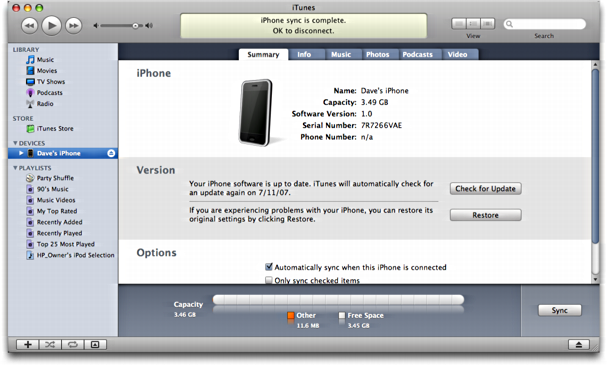
At this point, you need to plug in your iPhone if you haven't already done so. It'll pop up the usual summary screen:
Apple iPhone: Summary view in iTunes
Cool. Now click on the "Music" tab and you'll see that you can select "sync playlist". Do that, then select the new iPhone sync playlist you've created, as shown here:
Apple iTunes in Mac OS X: Synchronizing New Playlist with iPhone
Set things up just as I have shown and that's all there is to it. Now click "Sync" in iTunes and it'll synchronize your playlist with the iPhone music library and next time you click on that ole' "iPod" button on the iPhone, your selections from you music library will be present.
Oh, and one really nice feature of creating this playlist is that you can manage it, adding and deleting songs to your heart's desire, even without your iPhone present. Whatever changes you make are instantly applied to your iPhone music library the very next time you synchronize the device. Suddenly even 8GB might feel small. :-)

How do I upload a video from my Apple iPhone to YouTube?

Dave's Answer:
If you've been experimenting, I'm surprised you haven't tried to email a video to yourself and noticed the "Upload to YouTube" button immediately below the email option, but I'll let ya slide this time and show you how to do it.
First off, a suggestion: while you're on a regular computer, I suggest that if you don't have a YouTube account that you sign up for one. It'll make the upload process from your iPhone 3GS a ton easier. I mean, you could enter all the account information on your cell, but, really, do you want to suffer through field after field after field of data entry when you could probably do the entire process in just a minute or two on your laptop or desktop system? :-)
Here's the sign up link: Sign up to get an account on YouTube.
Great. Now, let's get to it!
I took an (I admit, extraordinarily boring) example video while working on this blog entry that's about ten seconds long. When I look at the video in the photo gallery on the iPhone, it looks like this:
apple iphone upload video youtube 01
What you want to do is tap on the box with the arrow coming out of it on the lower left corner. Now you'll see some options:
apple iphone upload video youtube 02
Really, you should have already seen this if you've been experimenting with different features on your phone, but I'll cut you some slack!
Tap on "Send to YouTube" and...
apple iphone upload video youtube 03
Here's where you want to know your YouTube account settings. Enter them and tap on "Sign In". Now YouTube wants you to enter a title, description, tags, and categorize the video.
apple iphone upload video youtube 04
We'll start with the first few fields, then continue:
apple iphone upload video youtube 05
Remember as you go through this that the better your description the more likely people will find it when they're searching YouTube for specific types of videos.
apple iphone upload video youtube 06
And tags are perhaps the most important one to be generous and label properly: better to have a few extra than to be too stingy...
apple iphone upload video youtube 07
When you're ready, tap on "Publish" on the top right and you'll rather suddenly be dropped back into your photo gallery without any additional feedback:
apple iphone upload video youtube 08
If you look closely, though, the "online activity wheel" is shown on the top left and sure enough, while you're wondering what's going on, the video is actually being uploaded to YouTube directly.
After a few moments (or longer), you'll see the following pop up:
apple iphone upload video youtube 09
I'm enthusiastic, so I'll tap "View on YouTube", which switches me to the YouTube player app on the Apple iPhone 3GS:
apple iphone upload video youtube 10
And, finally, when I can view the video, well, I'm moving a bit too fast, perhaps:
apple iphone upload video youtube 11